



Two-Factor Authentication Is Here: Because Your Password Deserves a Bodyguard
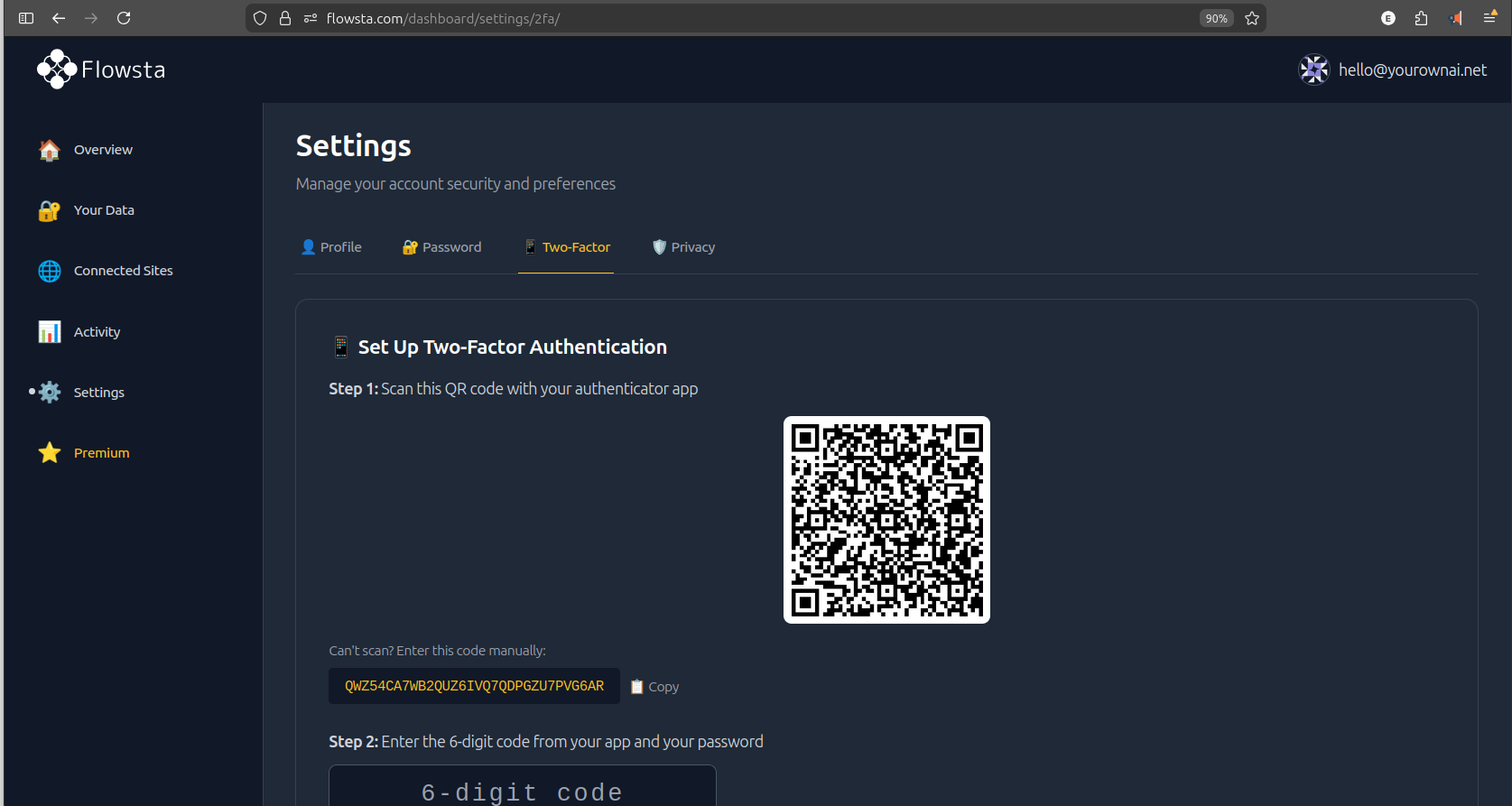
Your Flowsta account is already protected by zero-knowledge encryption — your data lives on Holochain, encrypted with keys only you control. But passwords can be phished, leaked, or guessed. That's why we've added two-factor authentication (2FA) to Flowsta Auth.
When 2FA is enabled, logging in requires two things: something you know (your password) and something you have (a code from your phone). Even if someone gets your password, they can't get in without that second factor.
Still Zero-Knowledge
Here's what makes Flowsta's 2FA different from most services: your TOTP secret and backup codes are encrypted with your password and stored in your private Holochain DNA. Not in our database. Not on our servers in any readable form.
We literally cannot see, recover, or reset your 2FA secrets. That's not a policy — it's cryptography.
This is the same zero-knowledge architecture that protects the rest of your account. 2FA just adds another lock to the door.
How to Set Up 2FA
Setting up two-factor authentication takes about two minutes.
What You'll Need
An authenticator app on your phone. Any TOTP-compatible app works, including:
- Proton Pass or Proton Authenticator — our top recommendation for privacy. Proton is end-to-end encrypted, which aligns perfectly with Flowsta's zero-knowledge philosophy.
- Google Authenticator (Android / iOS)
- Microsoft Authenticator
- Authy
- 1Password
Any app that supports TOTP (RFC 6238) will work.
Step-by-Step Setup
1. Open your 2FA settings
Log in to your Flowsta account at flowsta.com and navigate to Dashboard > Settings > Two-Factor Authentication.
2. Start setup
Click "Set Up Two-Factor Authentication". You'll see a QR code on screen.
3. Scan the QR code
Open your authenticator app, tap the option to add a new account, and scan the QR code. If you can't scan it, there's also a text code you can enter manually.
4. Enter the code and your password
Your authenticator app will start generating 6-digit codes that refresh every 30 seconds. Enter the current code along with your Flowsta password to confirm the setup.
5. Save your backup codes
You'll receive 8 backup codes. These are your safety net if you ever lose access to your authenticator app. Write them down or store them somewhere secure — once they're shown, we can't recover them for you (zero-knowledge, remember?).
6. Done!
2FA is now active on your account. Next time you log in, you'll enter your password first, then your 6-digit code.
What Logging In Looks Like Now
With 2FA enabled, the login flow adds one quick step:
- Enter your email and password as usual
- A second screen appears asking for your 6-digit code
- Open your authenticator app, enter the code
- You're in
If you've lost your authenticator app, click "Use a backup code" on the code entry screen.
Things to Know
Password changes are safe. If you change your Flowsta password, your 2FA stays active. The system automatically re-encrypts your TOTP secret with your new password behind the scenes.
Partner sites are protected too. If you use "Login with Flowsta" on any partner website, 2FA is enforced during the login step on login.flowsta.com. Partner sites benefit from your 2FA protection without needing to implement anything extra.
You can disable it. Go to Settings > Two-Factor Authentication and click disable. You'll need your password and a current TOTP code to confirm. If you re-enable it later, you'll get a fresh secret and new backup codes.
Time matters. TOTP codes are time-based. If your phone's clock is off by more than 30 seconds, codes may not work. Make sure your device time is set to automatic.
Why We Built It This Way
Most services store your 2FA secret in their database. If they get breached, attackers could potentially clone your authenticator. At Flowsta, your 2FA secret is encrypted and stored in your private Holochain DNA — the same way we handle your email, recovery phrase, and activity history.
The result: even in the worst-case scenario where our infrastructure is compromised, your 2FA secrets remain encrypted with a key derived from your password that only exists in your head.
Get Started
2FA is available now for all Flowsta accounts. Head to your dashboard settings and enable it today.
It takes two minutes to set up and significantly strengthens your account security — all while keeping Flowsta's promise that your data belongs to you and only you.
Questions? Check our FAQ or reach out on Discord.
Developers? 2FA is enforced at the login layer — no changes needed to your integration. Visit dev.flowsta.com for details.